Mobile App
The Human Input Mobile App is available on both the Apple App Store for iOS devices (iPhone, iPad) and the Google Play Store for Android devices. You can provide instructions to your audience that they can simply search for "Human Input" on whichever App Store they use and it should be the first thing that shows up.


The Mobile App is what puts you in control of your audience members screens. Once they have installed the app, opened it, and input your show or venue code, you control what appears and their screens and when.
Login
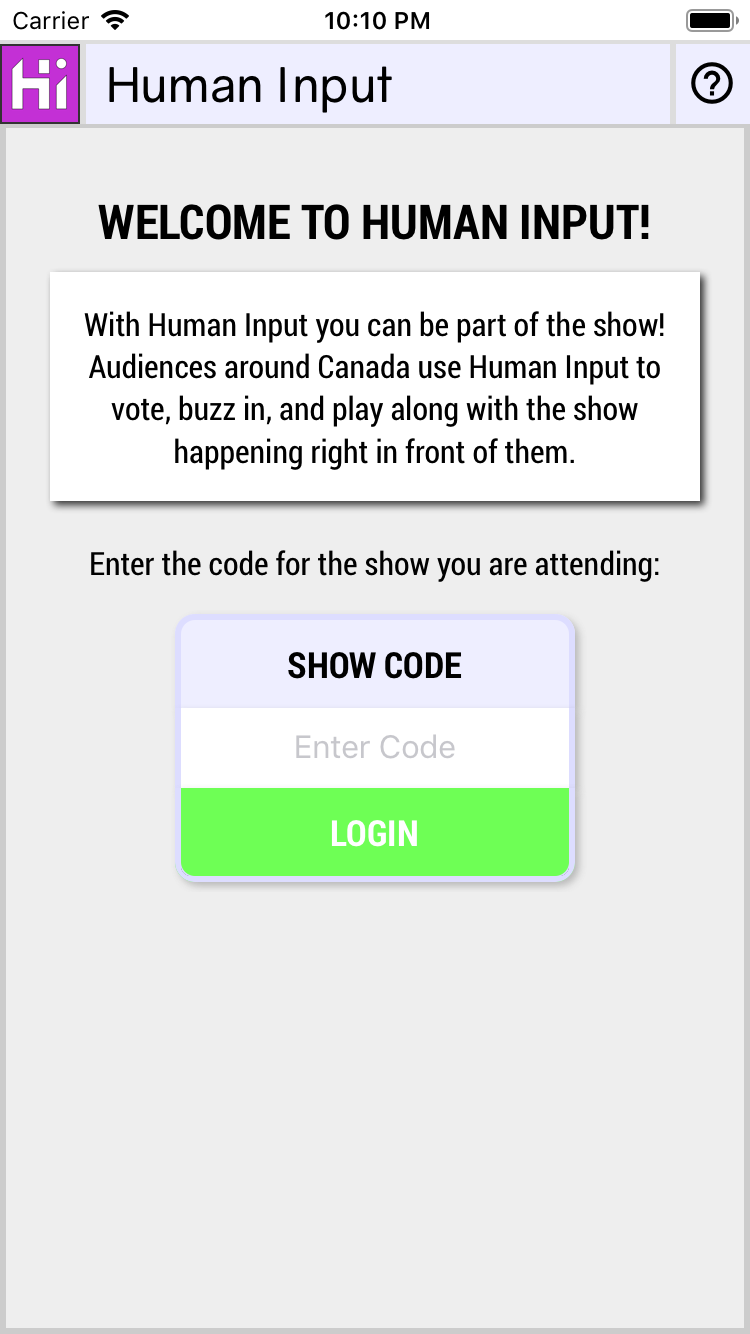
When your audience members first open the app, they will see the Human Input login screen. They will be prompted for your show/venue code and once it is entered they will be taken into the show. Make sure you communicate clearly to the audience what the code is for the show either through posters, on-table advertising, or include it in a custom message you have displayed on your venue TVs.
About
At any time if someone clicks the question mark (?) in the top right of the app they will see the About screen. This will show them the version number of the app they are on and the last 4 digits of their uniquely identifying HiD.

The version of their app should always be the most recent one available, even if they haven't updated through the App Store. Human Input implements technology that pushes updates to their devices each time they open the app, allowing us to support new features for all your audience members without the hassle of an App Store update.
What is displayed as the HiD for the device is actually just the last 4 characters of a 32 character unique sequence. Only the last 4 are displayed because that should always be unique enough for the purposes of your show. If needed we always have the 32 character version stored in our systems.
Custom Messages
When you are on the "Messaging" tab of your Show Runner Interface and are selecting to display a custom message to your audience, what they see will vary depending on the type of Custom Message selected.
Single/Dual
Whether you select a "Single" or "Dual" type message, it will appear the same on the phone. Whatever you placed in the main body of a "Single" type custom message, or in the "Mobile" body of a "Dual" type custom message, will appear in a white box on the audience member's screen.

Image
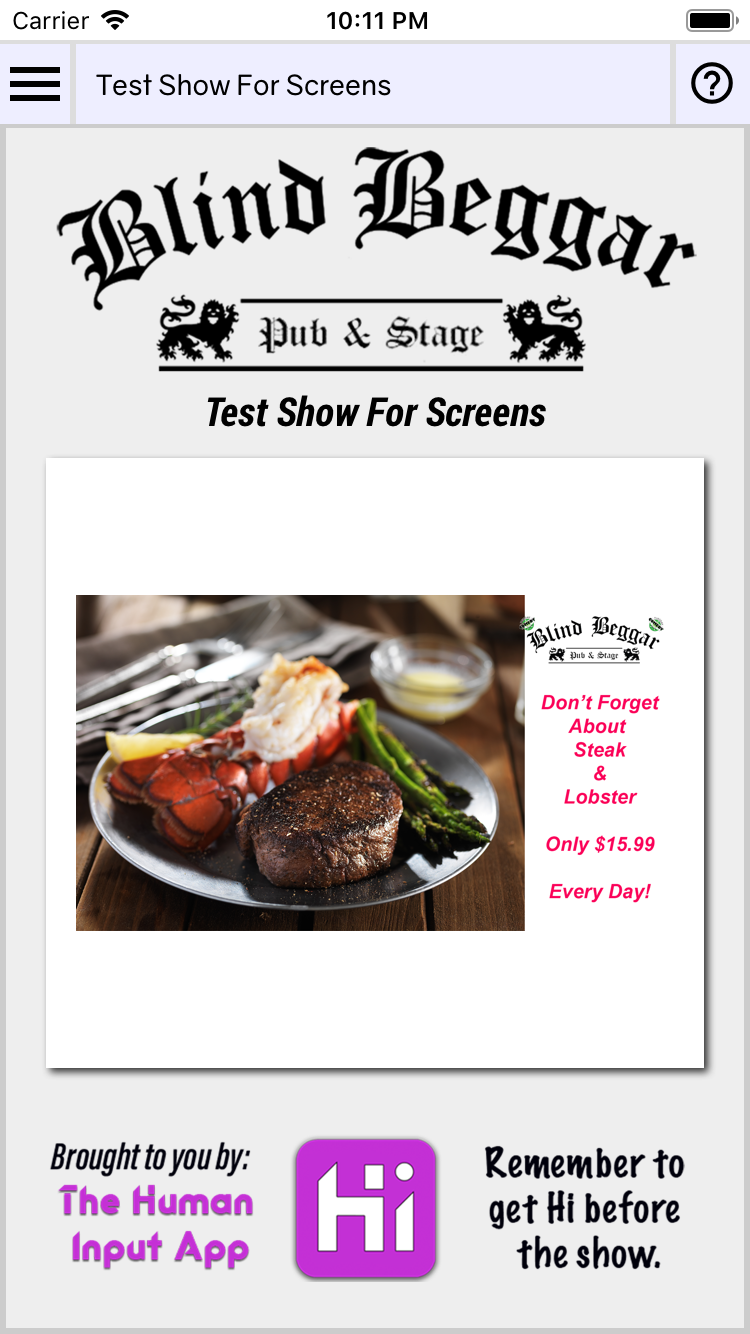
When you select an "Image" type custom message the image you have selected will appear centered and enlarged as large as possible for the user's screen.
Video
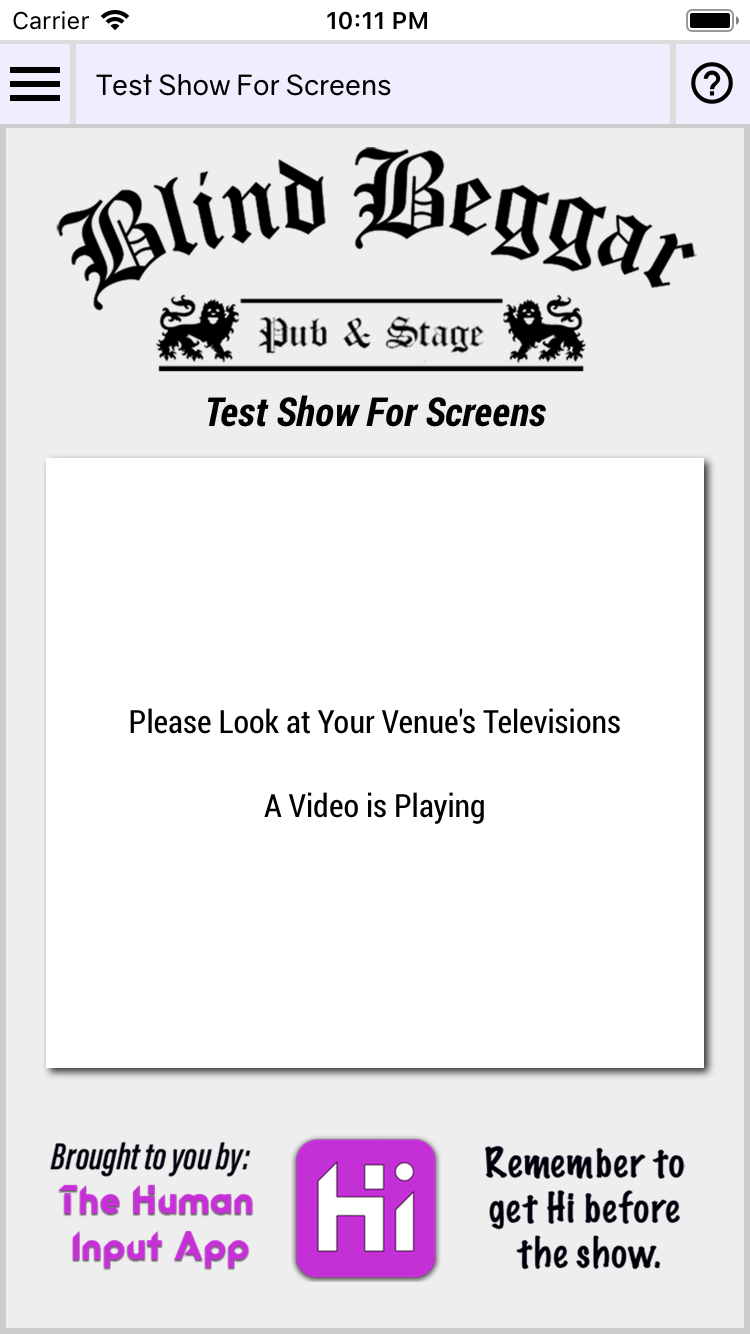
When you select an "Video" type custom message the user's screen will direct them to watch the video on your venue's TV systems.
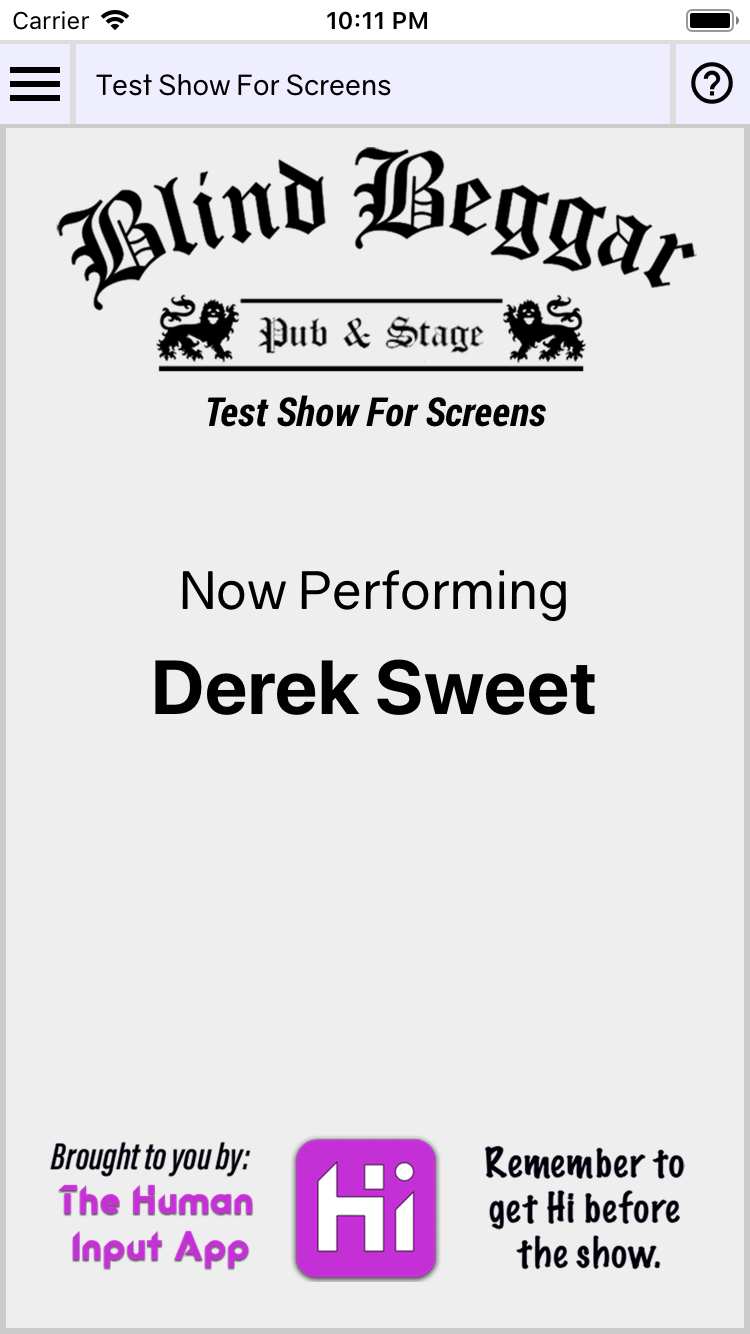
Performing
When you are on the "Performing" tab of your Show Runner Interface you can present the current Performer on everyone's screens
Voting
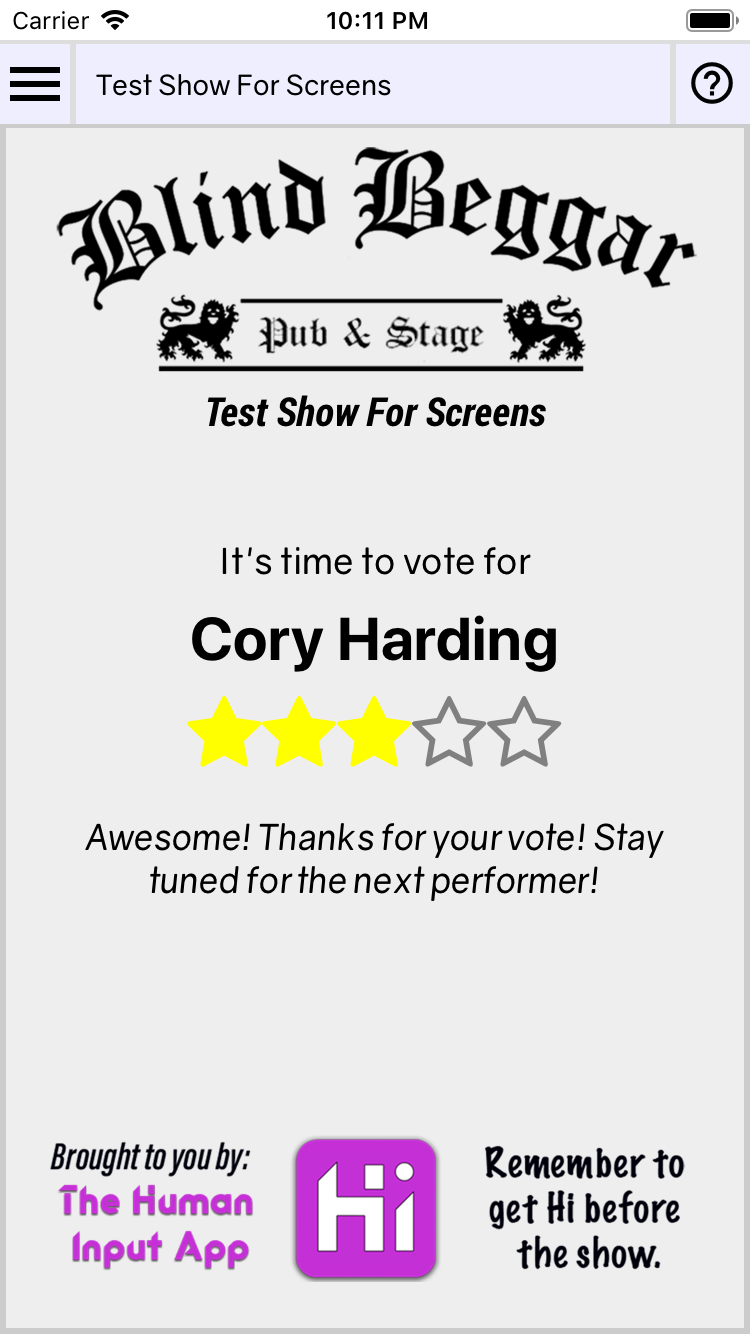
When you are on the "Voting" tab of your Show Runner Interface you can select a performer for all your audience members to vote on. As they vote you should see the number of votes and average score update on your screen.
Draw
When you are on the "Draw" tab of your Show Runner Interface you can hold random draws amongst all your audience members that have logged in. The contents of people's screens will vary based on the state of the draw and whether or not they are a winner.
Get Ready
When you are on the "Get Ready" state of a draw, the mobile devices will display a graphic preparing them for the draw and get them looking at their screens.

Lose
When your audience member did not win the draw, they will be presented with a large graphic indicating that and trying to make them not feel to bad.

Win
When your audience member DID win the draw, their screen will flash, the device will vibrate (iOS Only), and a "YOU WON" graphic will animate wildly on their screen.
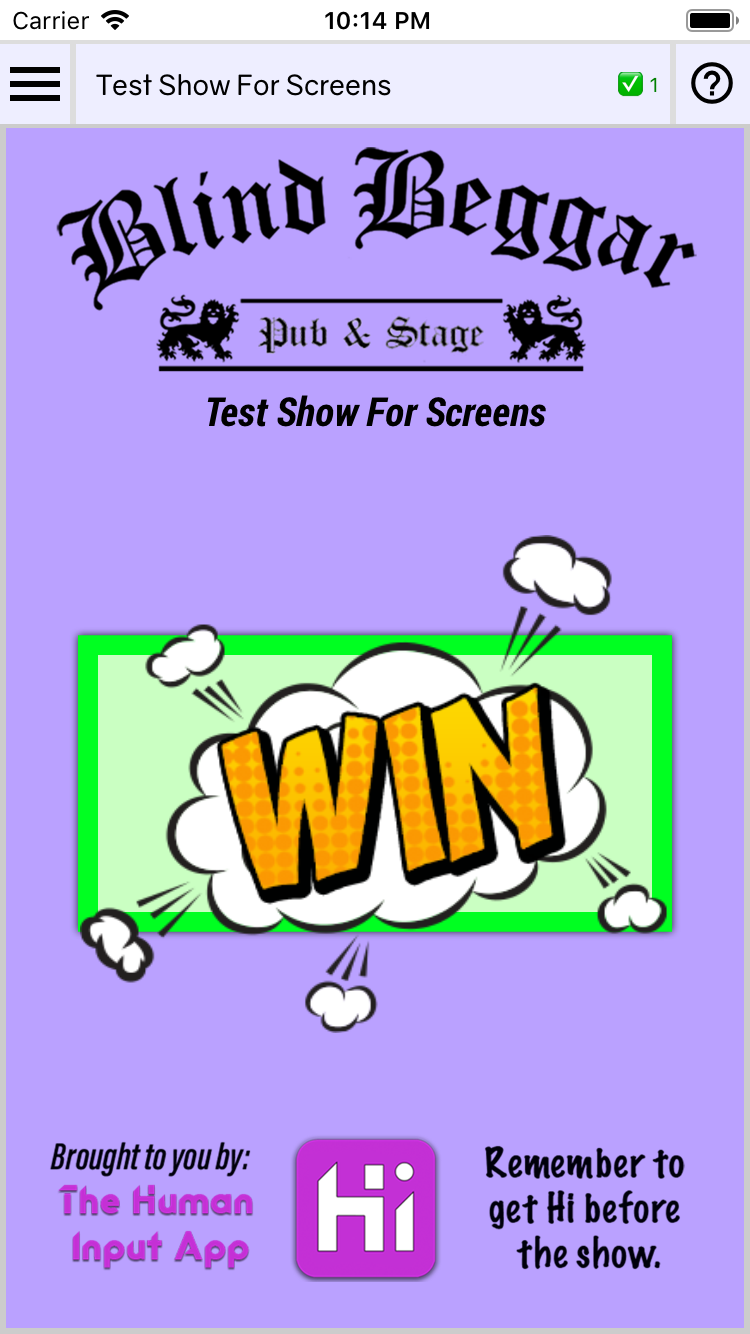
Note that a small green check mark will appear in the top right of their screen with a number next to it. This is to indicate that they were a draw winner, and the number is the number of the draw they won. For example if you held three draws during the show, and an audience member won the 2nd draw, their screen would have the green check mark as well as the number "2" next to it.