Upgrade Account
Note: We have structured our prices such that the cost of boosting two shows in a month is equal to a monthly subscription for those same permissions. If you are planning to boost 3 or more shows a month then you are better off Upgrading your Account.
After clicking the button you will be presented with the first step of the process. You will be asked what audience capacity you want your shows to be capable of supporting, whether or not you want to use Hi-Impact Media, and/or you want control of the Advertising on your shows, as shown in the following screenshot:
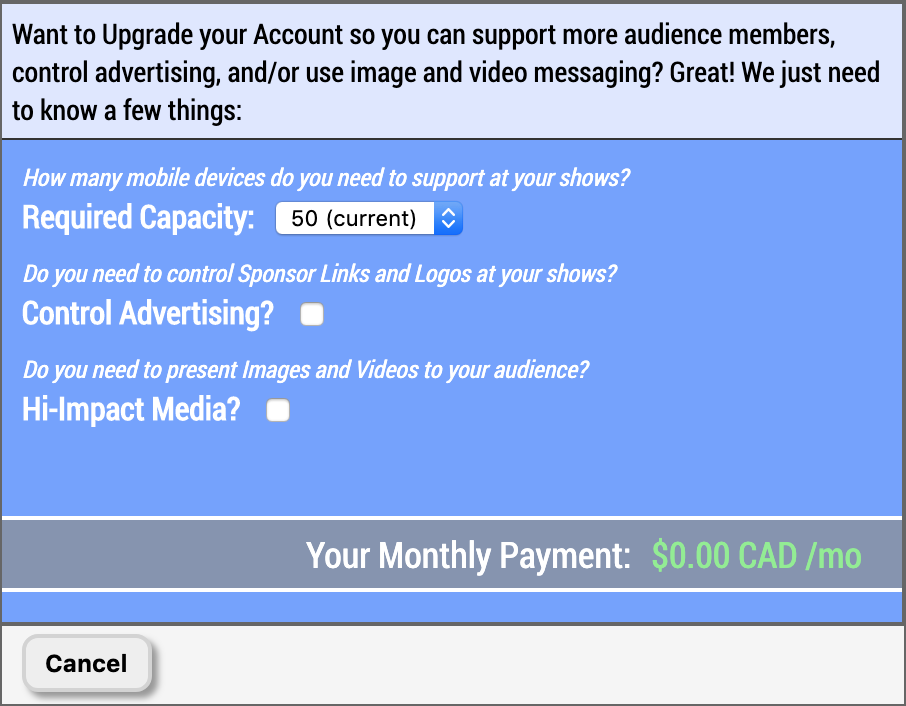
Here is a breakdown of what each permission means:
- Capacity - This represents the number of mobile devices that are capable of connecting to your shows. Each time a unique audience member logs into one of your shows they are tracked and once your capacity is reached no more people will be able to get in. Anyone that has previously logged in will still be able to log out and log back in without it counting against your capacity. If your capacity is reached you can always boost the individual show and it will be instantly ready to support more audience members once the transaction is complete.
- Control Advertising? - This allows you to define Sponsor Logo and Sponsor URL values on both your shows and your venues. Whatever Sponsor Logo you specify will appear at the bottom of the mobile device screens that are logged into your shows. When an audience member clicks on the logo they will be taken to whatever link you have specified as the Sponsor URL. If you have not defined a Sponsor URL then nothing will happen when the Sponsor Logo is clicked. If you define Sponsor Logo and/or Sponsor URL values for a venue that is associated with a show the venue's Sponsor Logo and Sponsor URL will override anything set for those values on the show.
- Hi-Impact Media? - This allows you to present images and videos to your audience. Without this permission you will only be able to add "Single" and "Dual" type custom messages. Once this permission is purchased you will be able to add the "Image" and "Video" types as well. Images will appear on both the mobile devices and the TVs. Videos will be displayed on the TVs, and the mobile devices will display a message telling audience members to look at the TVs.
As you select your desired permissions, the cost of your Monthly Payment will be dynamically updated at the bottom of the screen. Once you have settled on the permissions you want, click the button.
The next screen will collect your credit card information as displayed in the next screenshot:
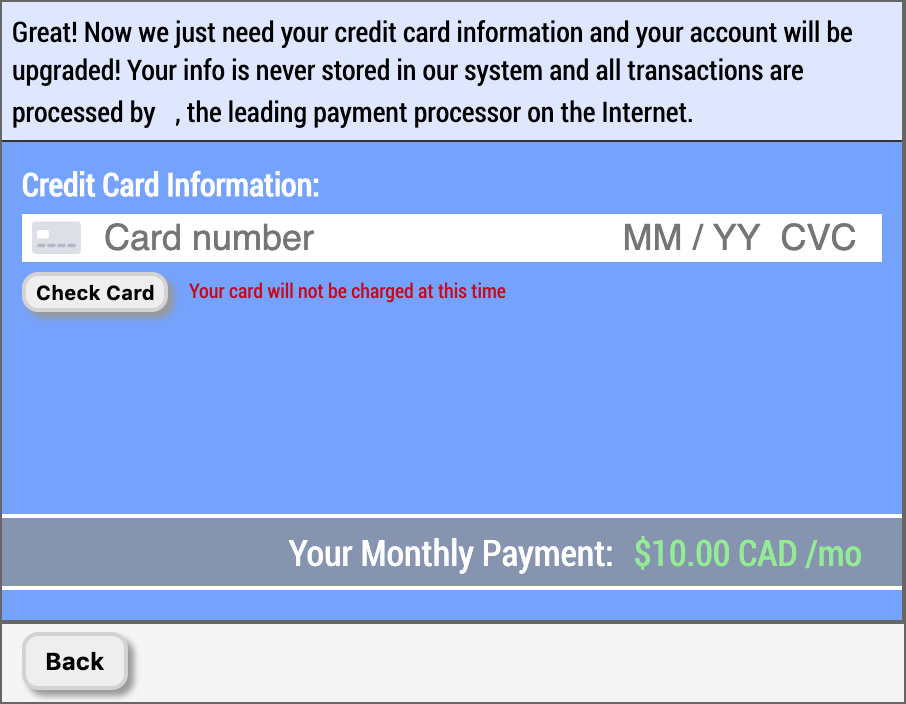
Enter in your credit card number, expiry date, CVC, and postal code. Once you are ready click the button to validate your credit card is real. Your credit card will NOT be charged at this time, nor is this a pre-authorization, it is just checking that your card is not stolen or fake. If your card is valid then you will be presented with the following screen:
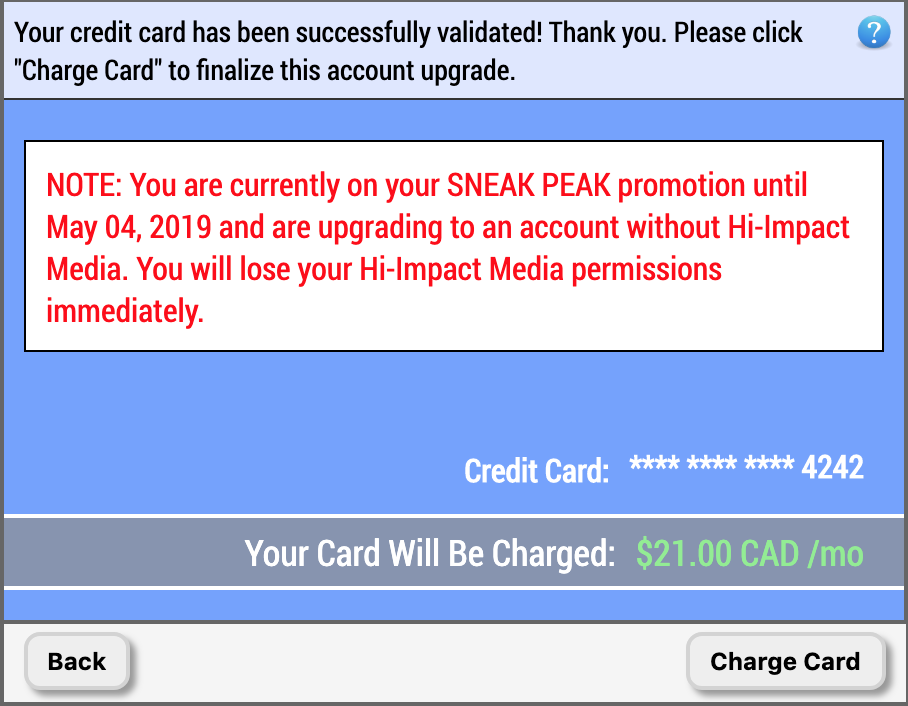
Note: as depicted in the screenshot above, if you are currently enjoying a SNEAK PEAK promotional account with Hi-Impact Media permissions, and you are upgrading your account to a plan without Hi-Impact Media permissions, then you will immediately lose your Hi-Impact Media permissions upon upgrading.
This is the final step before your Account Upgrade is complete. Once you click the button the credit card transaction will be processed.
If all goes well with the credit card transaction then you will see the following screen detailing the new account permissions as well as how much was charged on the credit card:
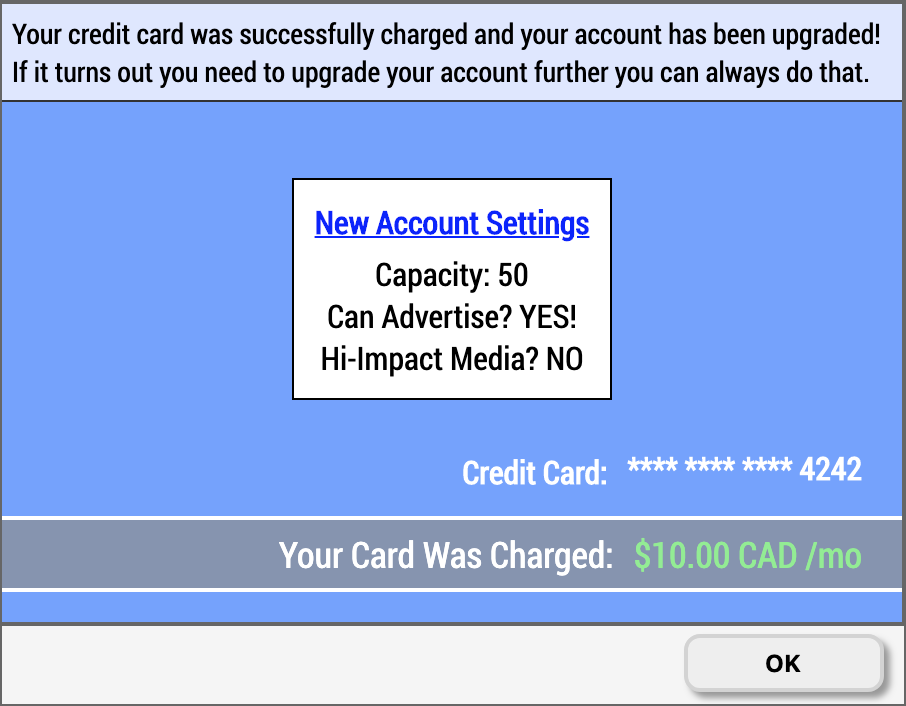
Click the button to return to the Settings Popup.
Note that your account permissions have been upgraded and you should now see a Next Billing Date displayed indicating the next time your credit card will be charged for the subscription:

You have the option of cancelling your subscription at any time by clicking the button. A popup confirmation will appear making sure you want to cancel, and if you click "OK" then your subscription will be canceled. You will still have all the permissions you've purchased up until your next billing date.
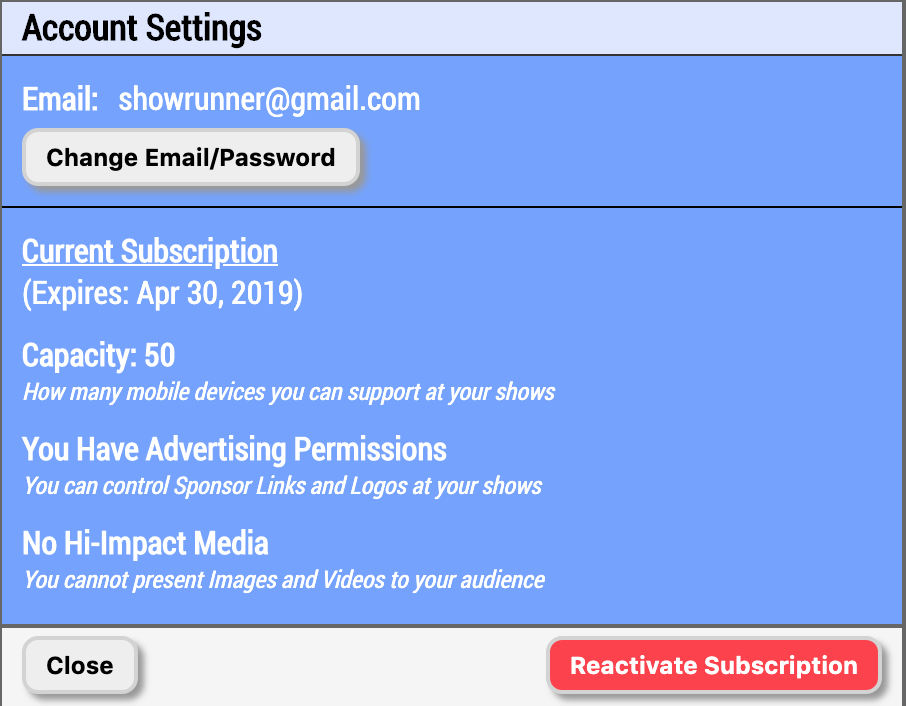
If you change your mind and decide that you want to reactivate your subscription at any time after cancelling, as long as it is before your current permissions expire it will not cost you anything to do so. Simply click the button, a popup confirmation will appear making sure you want to reactivate, and if you click "OK" then your subscription will be active again. The next time your scheduled due date comes around you will be billed again and your subscription will remain active.