TV
If you want to display show details on the TVs of your venue then you will need to have a way of connecting a laptop or desktop computer to the audio/visual components of your venue. We also recommend that you use Google Chrome as your browser and be sure to install the "Full Screen for Google Chrome" extension (found here) so that you can display the TV screen without any URL bar, bookmarks, or other browser UI components that make it obvious it is a web page being displayed.
NOTE: If you try to operate your TV display outside of the 12 hour window surrounding your show start time it will display a Human Input advertisement no matter what you tell it to display. We do have an "Anytime TV" permission that we can activate for your account, if you need to get around this restriction then please contact Customer Service.
Messaging
If you are in Messaging mode then your TV will display whatever Custom Message you have selected in the center of the screen. Here is an example of a Single type custom message:

Performing
If you are in Performing mode then your TV will display the current performer's name in the center of the screen. Here is an example:

Voting
If you are in Voting mode then your TV will display the name of the performer being voted on in the center of the screen. Here is an example:
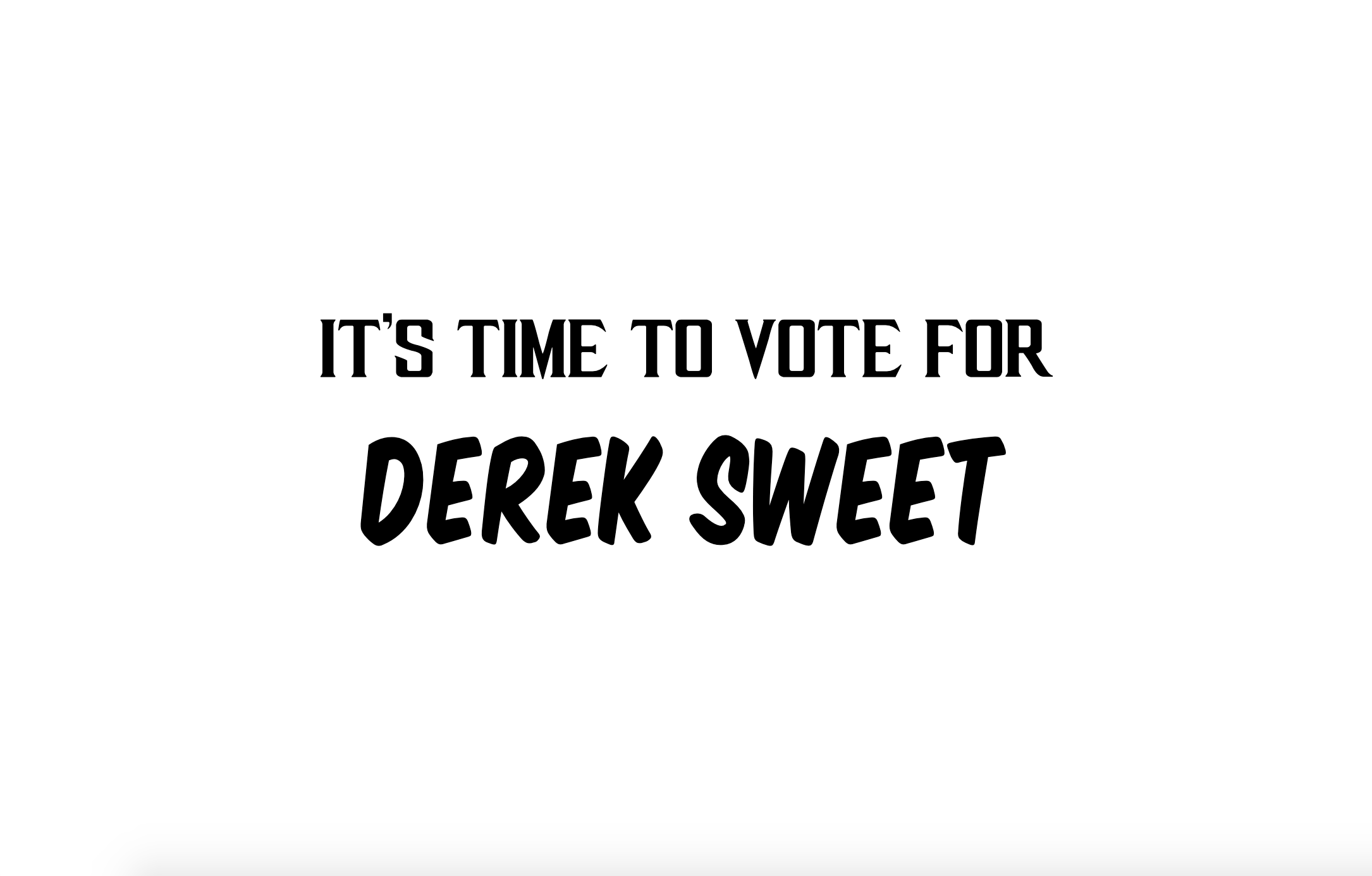
If you declare a winner then the name of the performer that won will appear in the center of the screen. Here is an example:

Draw
If you are running a draw, no matter what step of the draw you are in, the TV's wil simply display a message indicating that a draw is taking place. Here is an example:

Spotify Integration
The TV display supports Spotify playlist playback, allowing you to play background music during your show. Spotify integration works seamlessly with video content, automatically fading in and out based on your video audio settings.
Setting Up Spotify
To use Spotify on your TV displays:
-
Add a Spotify Playlist URI - In your Show or Channel settings, add a Spotify Playlist URI. You can find this by:
- Opening your playlist in Spotify (desktop or web app)
- Right-clicking on the playlist and selecting "Share" → "Copy link to playlist"
- The URI will look like:
spotify:playlist:37i9dQZF1DXcBWIGoYBM5M - Paste this into the "Spotify Playlist URI" field in your Show or Channel settings
- Authenticate on TV Display - When you load the TV display page, you'll see an "Auth Spotify" button in the bottom-left corner. Click it to authenticate with your Spotify account. You'll need a Spotify Premium account to use this feature.
- Control Playback - Once authenticated, you'll see a "Spotify: 🔊 On / 🔇 Off" toggle button. Use this to start or stop Spotify playback.
Spotify Toggle Button
The Spotify toggle button appears in the bottom-left corner of the TV display when:
- A Spotify Playlist URI is configured for your Show or Channel
- You have authenticated with Spotify (click "Auth Spotify" if you haven't)
Toggle States:
- 🔊 On - Spotify is playing. Music will play during images, slides, and text messages. It will also play during videos if video audio is disabled.
- 🔇 Off - Spotify is paused. No music will play.
Volume Control: When Spotify is authenticated, a volume slider appears below the toggle button. Adjust it to control the Spotify playback volume (0-100%).
Note: The controls will automatically fade out after 2 seconds of mouse inactivity to keep the display clean. Move your mouse to bring them back.
Video Audio Control
Video custom messages have an audio control setting that determines how they interact with Spotify:
-
Video Audio Enabled (On) - When a video has audio enabled:
- The video will play with sound
- Spotify will automatically fade out (over 4 seconds) when the video starts
- Spotify will automatically fade back in (over 4 seconds) when the video ends
- Video audio takes priority over Spotify
-
Video Audio Disabled (Off) - When a video has audio disabled:
- The video will play muted (no sound)
- Spotify will continue playing in the background
- No fade out/in occurs - Spotify plays continuously
- Useful for silent video content where you want background music
Setting Video Audio: Video audio is controlled by the Video Audio Enabled setting on each video custom message. This can be set when creating or editing a video custom message. The setting is stored in the database and automatically syncs to all TV displays in real-time via ActionCable.
Important: Video audio settings cannot be changed from the TV display itself - they must be set in the admin interface when creating or editing custom messages. Changes are immediately broadcast to all connected TV displays.
How Spotify and Video Audio Work Together
The system intelligently manages audio based on content type and settings:
| Content Type | Spotify State | Behavior |
|---|---|---|
| Image / Slide / Text | On | Spotify plays continuously |
| Video (Audio Enabled) | On | Spotify fades out (4 sec), video plays with sound, Spotify fades back in when video ends |
| Video (Audio Disabled) | On | Spotify continues playing, video plays muted |
| Any Content | Off | No Spotify playback |
Spotify Authentication & Token Expiration
Spotify uses OAuth 2.0 authentication for secure access. Important notes:
- Authentication Required: You must click "Auth Spotify" and authorize the app with your Spotify account before playback can begin. This is a one-time process per browser session.
- Token Expiration: Spotify access tokens expire after approximately 1 hour. If Spotify stops working after being idle for a while, you'll need to click "Auth Spotify" again to re-authenticate.
- Premium Account Required: Spotify Web Playback SDK requires a Spotify Premium account. Free accounts cannot use this feature.
-
Permissions: The app requests the following Spotify permissions:
streaming- Play music through the Web Playback SDKuser-read-playback-state- Read current playback stateuser-modify-playback-state- Control playback (play, pause, volume, etc.)
Troubleshooting Spotify
If Spotify isn't working:
- No "Auth Spotify" button: Make sure a Spotify Playlist URI is configured in your Show or Channel settings.
-
Authentication fails: Check that your Spotify redirect URI is correctly configured in your Spotify Developer Dashboard.
The redirect URI should match:
https://yourdomain.com/oauth/callback - Playback doesn't start: Verify you have a Spotify Premium account. Free accounts cannot use Web Playback SDK.
- Token expired: If Spotify was working but stopped after being idle, click "Auth Spotify" again to re-authenticate.
- Rate limiting errors: The system uses optimized fade timing (4 seconds, reduced API calls) to avoid Spotify rate limits. If you see 429 errors, wait a moment and try again.