Run Show
So you've created a show, you've setup all your performers, you've defined all your custom messages, so let's find out how you make it all actually work! When you first click the button next to a show on the show index, if you have never ran the show before this is the first screen you will see.
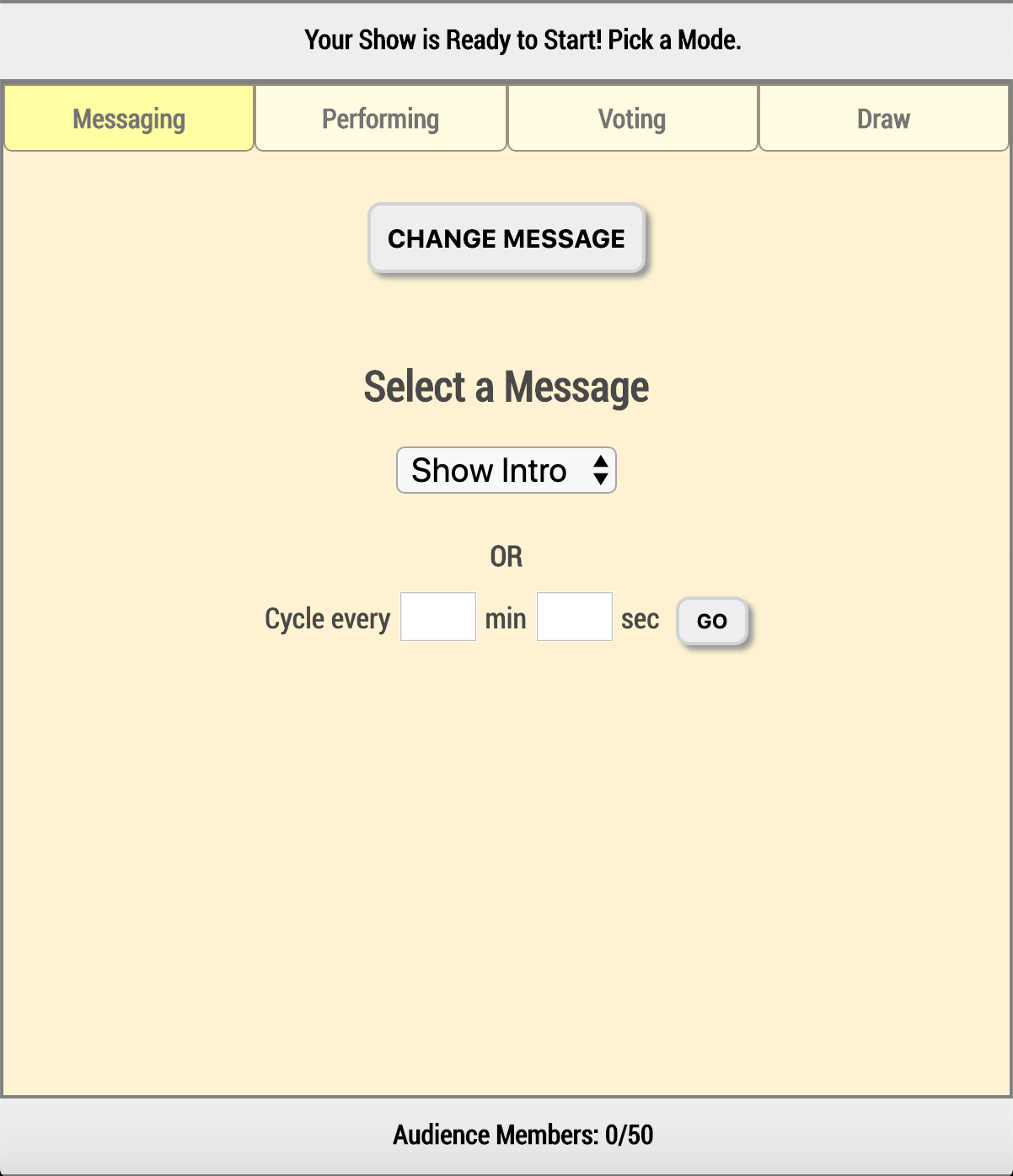
The top bar is your status bar. This displays the current state of the show: What custom message is being displayed? Who is performing and what is their current time? Who is being voted on? Is there a draw taking place, and if so, what step of the draw are we on? The top bar will always answer those questions, telling you what the state of the show is and whatever other info you will need to know about that state.
The bottom bar is your footer. This will display the current number of audience members that have logged into your show against the total capacity for the show. Once the number of the left reaches the number on the right new audience members will no longer be able to log into your show. If your show has not started, and less than 10 audience members have logged in, you can click "Reset Show" to reset the capacity count. NOTE: If you do this then any draws you run will be for the people that logged in AFTER you reset the show. Anyone that logged in before will not be eligible for the draw.
When you first come here it will say "Your Show is Ready to Start! Pick a Mode!" in your status bar because you will have not set the initial state of the show. If you are returning here after already setting the state of a show, when you show up you should be on whatever tab reflects the current state of the show.
Messaging
Select the "Messaging" tab at the top of the screen to display custom messages to your audience on the TVs and mobile devices of audience members. Simply select a custom message from the dropdown and click "Change Message" and the custom message you selected should appear on all the TVs and mobile devices connected to the show, and the status bar at the top will change to reflect the message being displayed.

You also have the option to cycle custom messages by entering a minute and second value for how frequently to cycle to the next custom message, and then click "Go". A message will appear indicating that the show is cycling and you should see the status bar at the top change with each cycle to indicate which custom message is currently being displayed. NOTE: The minimum cycle time is 10 seconds.
Performing
If you would like to have all the displays updated to reflect the name of the performer currently on stage, then press the "Performing" tab at the top of the screen and you should see a page similar to this:
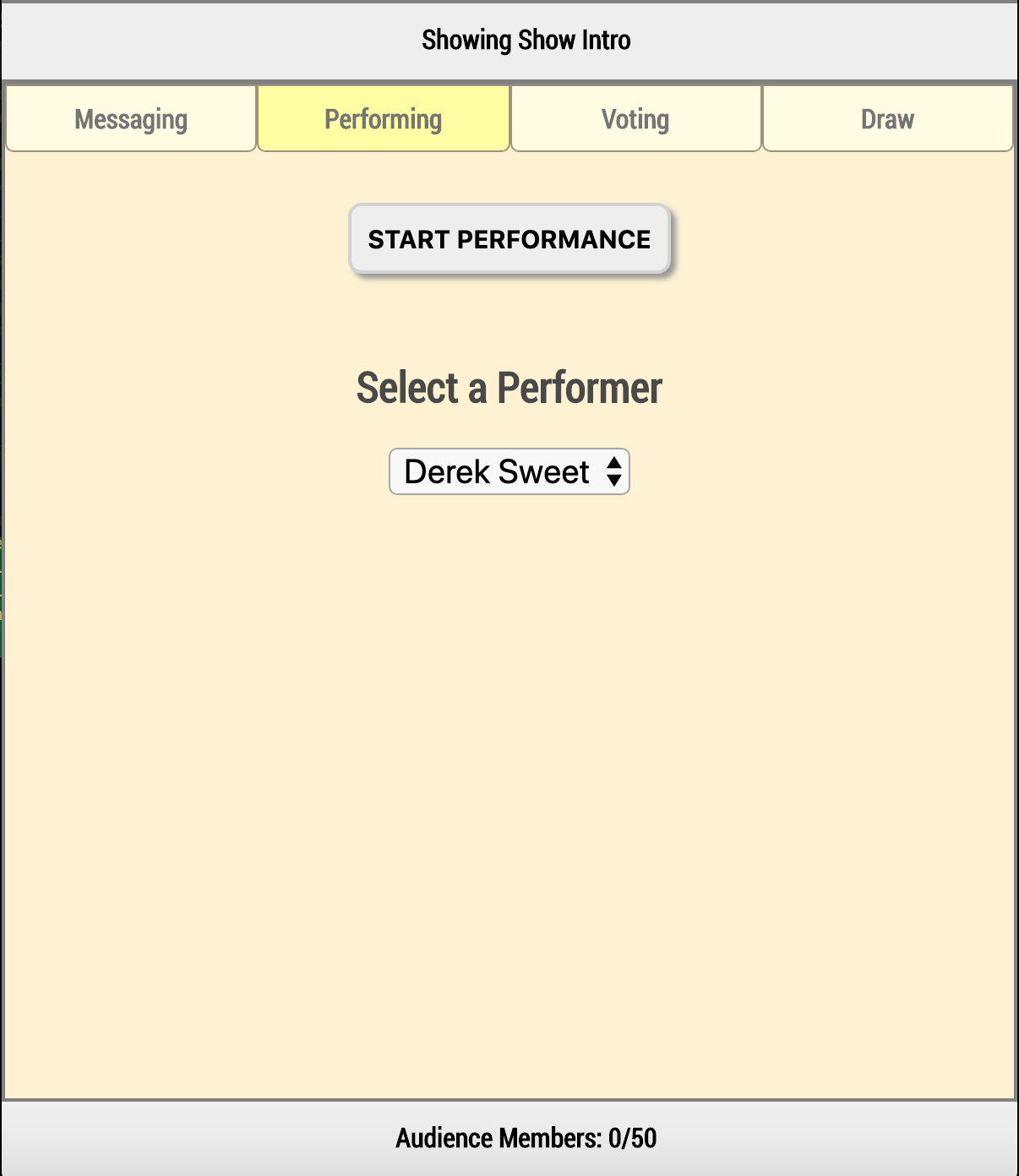
The performers you programmed for the show should populate the dropdown in the center of the page. Simply pick one of the performers and select "Start Performance" to switch the state of the show to Performing and to display the selected performer as the one currently on stage. The status bar at the top should change to reflect the name of the performer and what their current set time is.
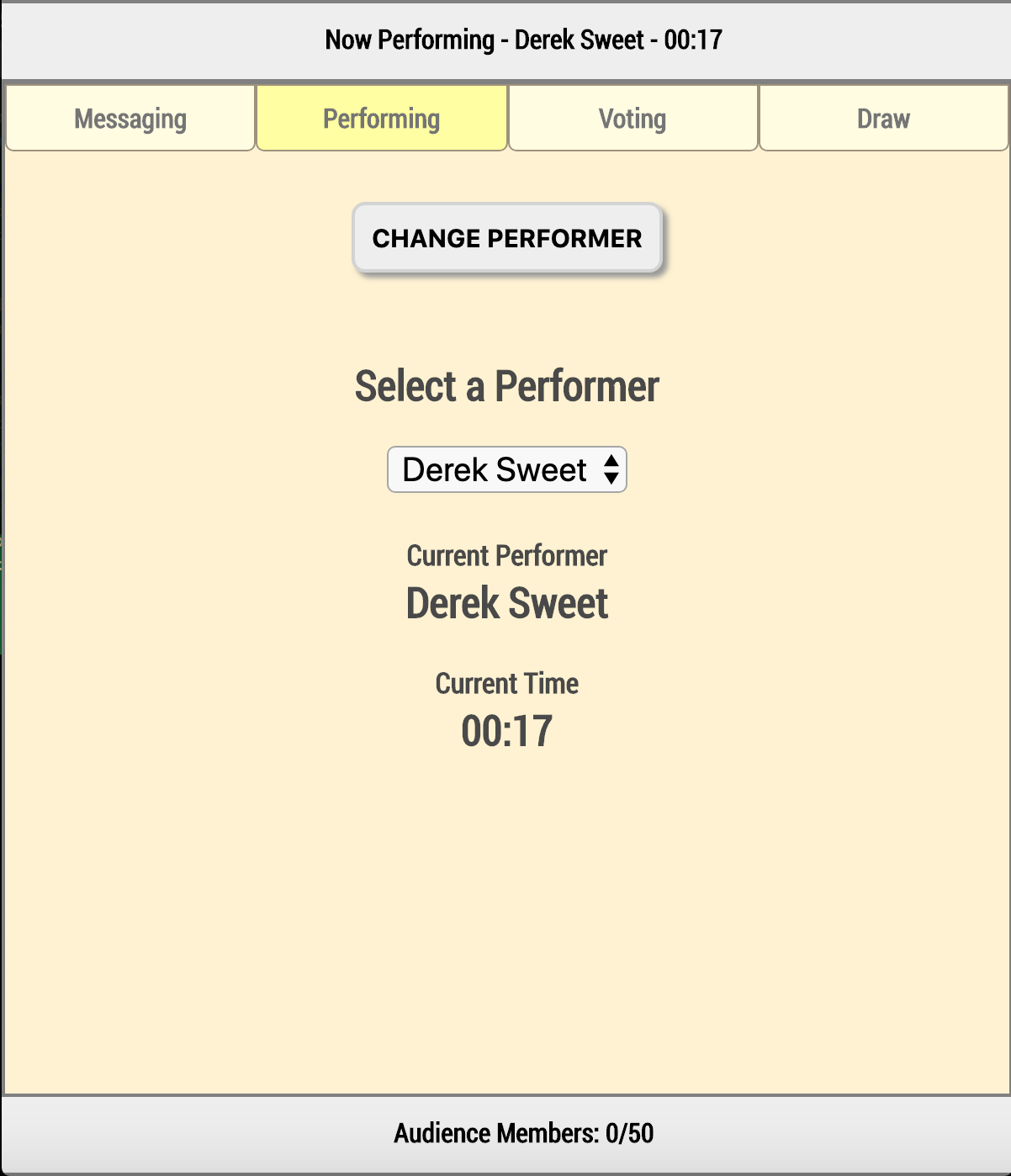
Once the performer is selected you should see their name below the dropdown as well, with a counting timer that shows their current set time. If you want to change the performer being displayed simply select a different performer from the dropdown and click "Change Performer". The set time of the previous performer will be retained and can be seen by clicking "Show All Votes" on the voting tab.
Voting
If you want to allow your audience members to vote on a performer on your show, giving them a 1 to 5 star rating, then click the "Voting" tab at the top of the screen and you should see a page similar to this:
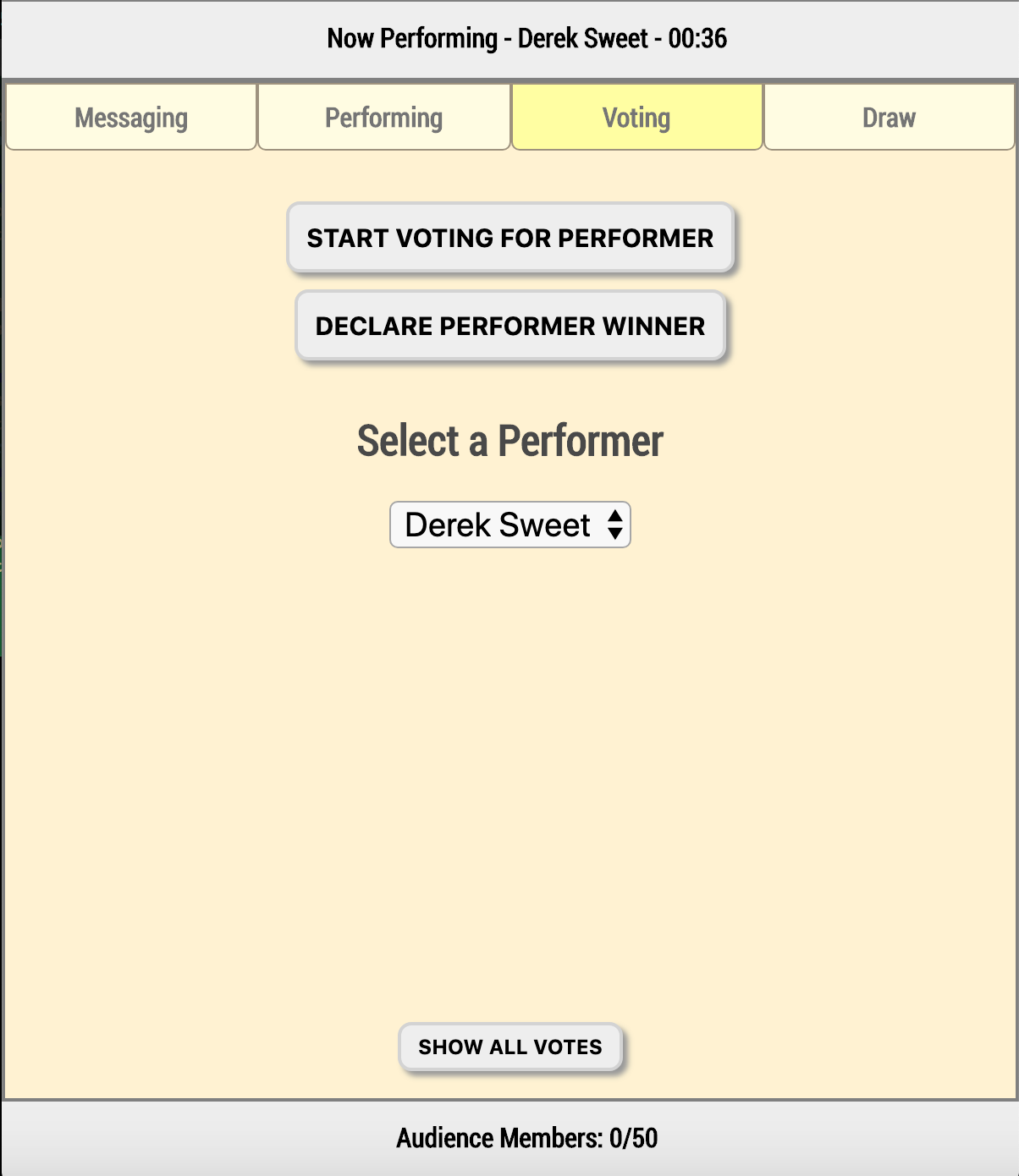
The performers you programmed for the show should populate the dropdown in the center of the page. Simply pick one of the performers and select "Start Voting For Performer" to switch the state of the show to Voting and to display the selected performer as the one being voted on. The status bar at the top should change to reflect the name of the performer being voted on. The name of the performer, how many votes they've received, their average score, and the set time of their performance will all be displayed.
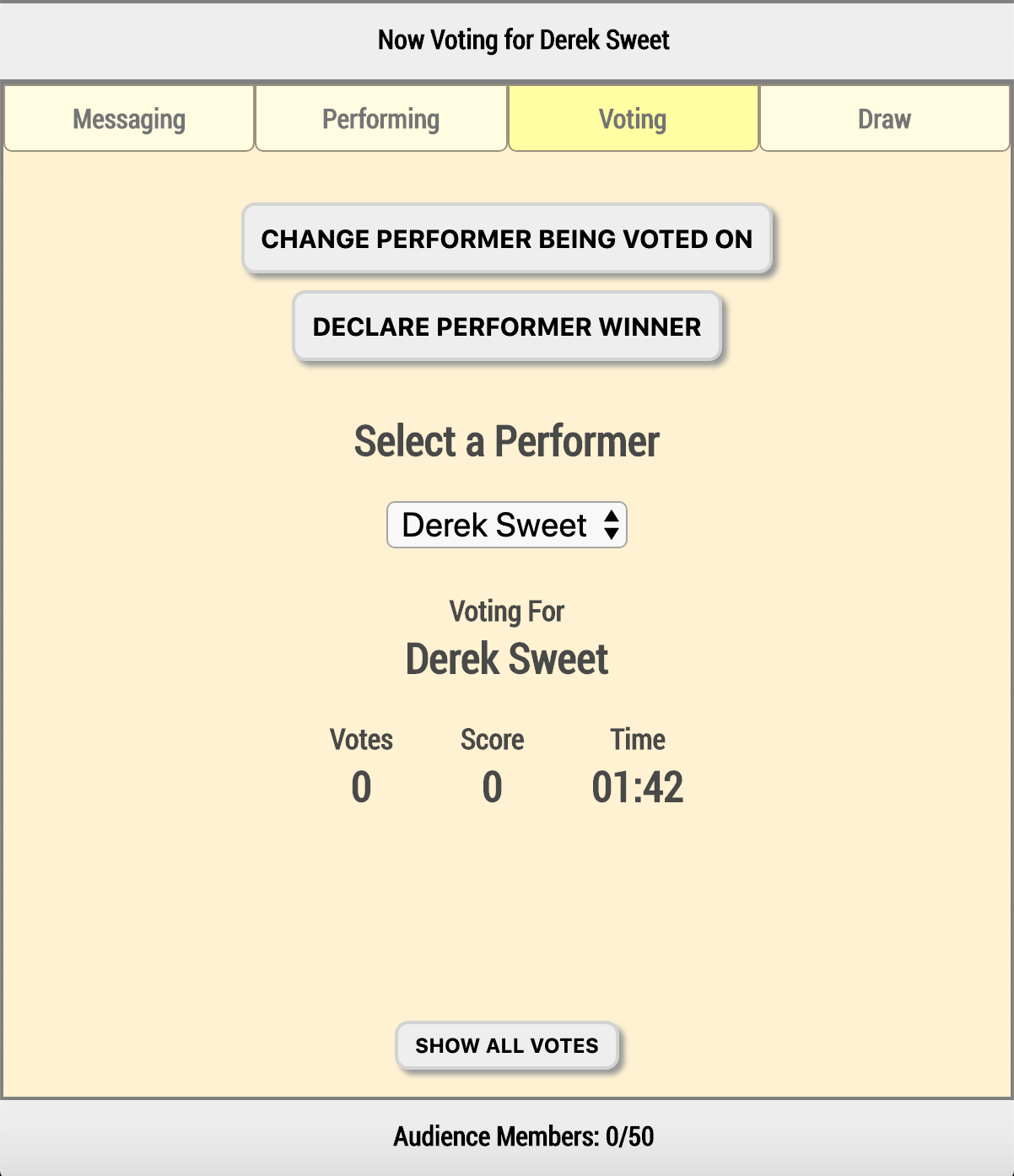
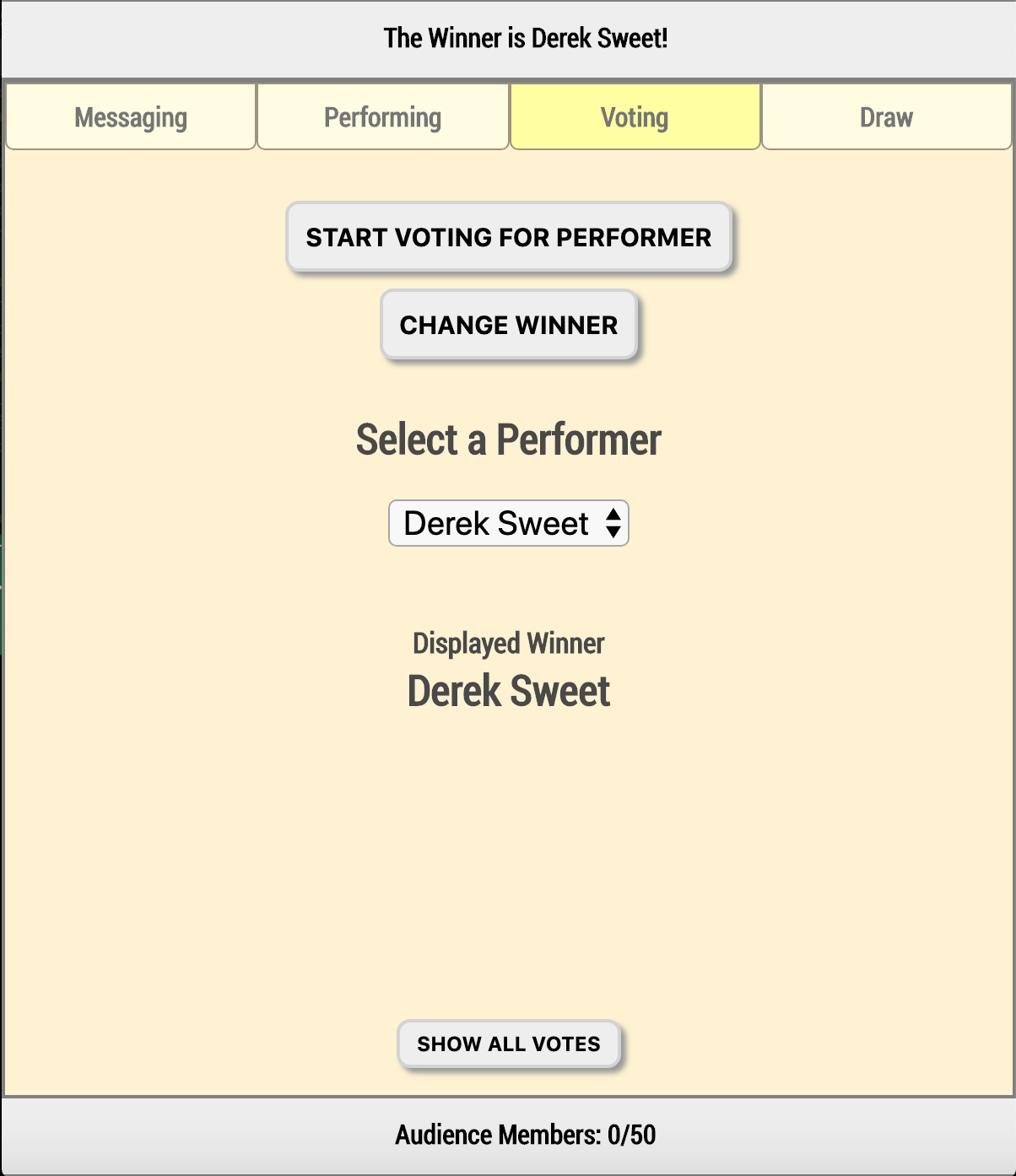
If you want to change the performer being voted on simply select a different performer in the dropdown and click the "Change Performer Being Voted On" button. If you want to declare them the winner then click the "Declare Performer Winner" button.
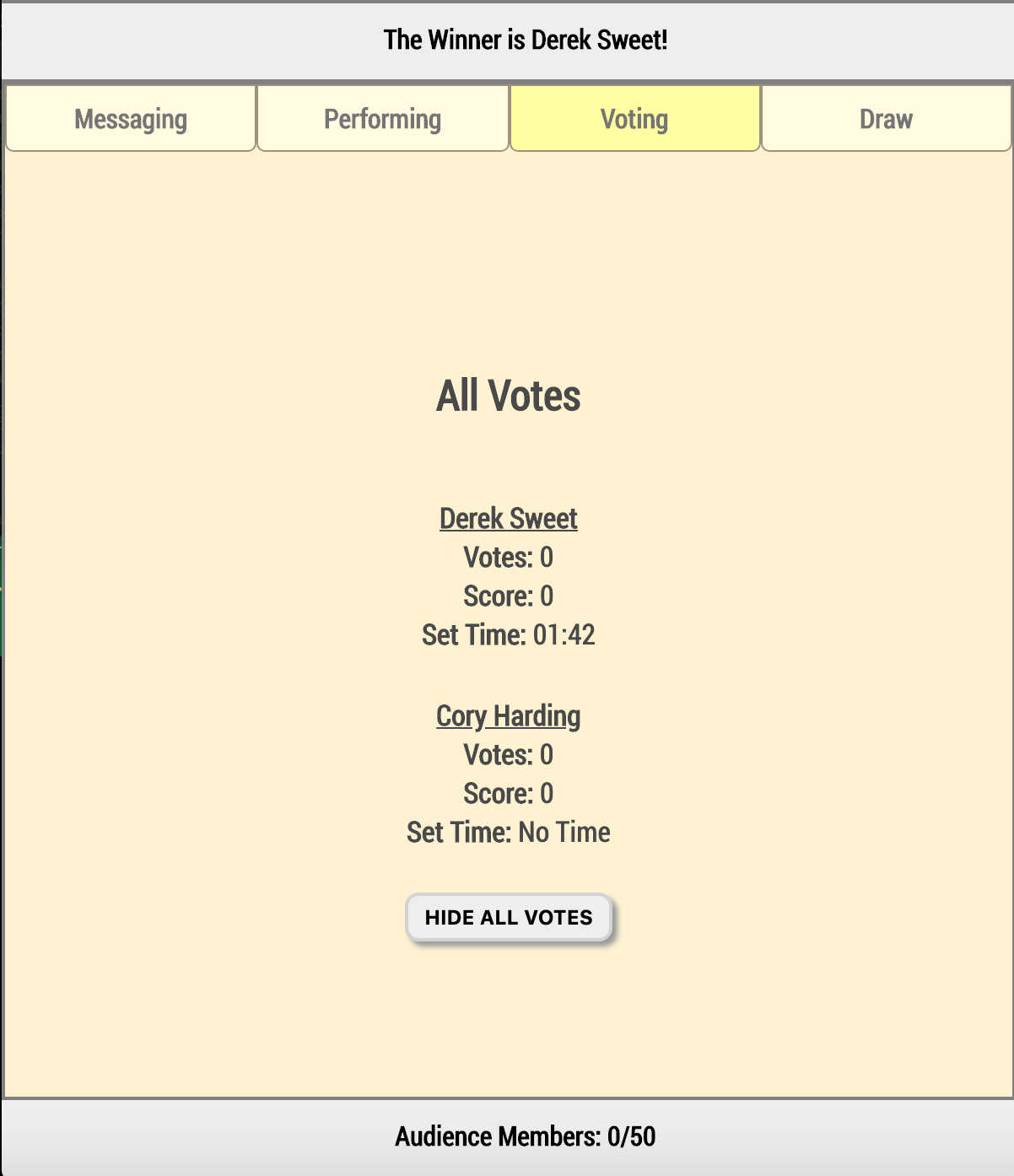
If you want to see all the votes for all the performers, and their set times, then click the "Show All Votes" button.
Draw (All)
If you want to hold a draw amongst all of your logged in audience members then click the "Draw" tab at the top of the screen and select "All" from the switch at the top and you should see a page similar to this:
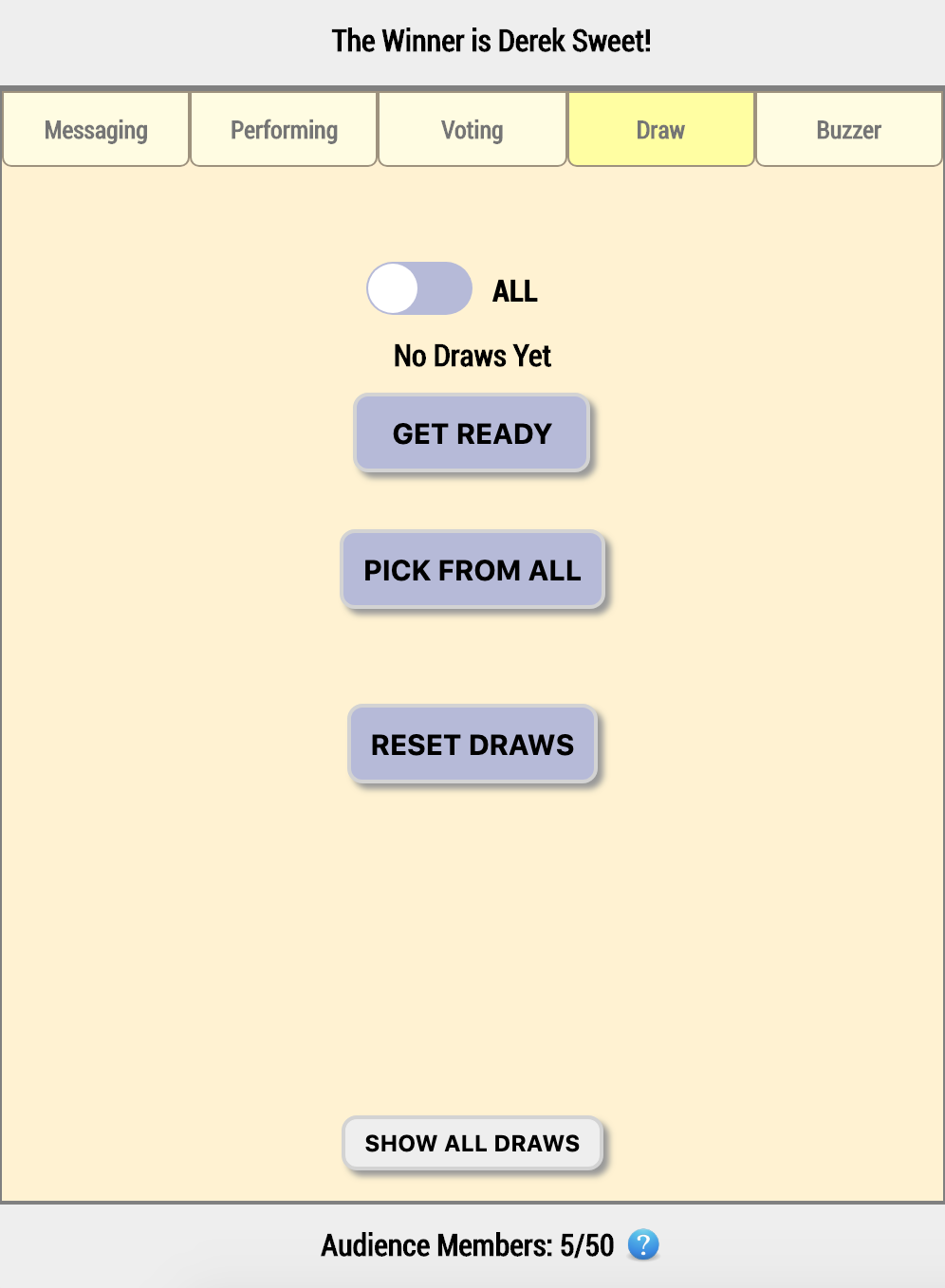
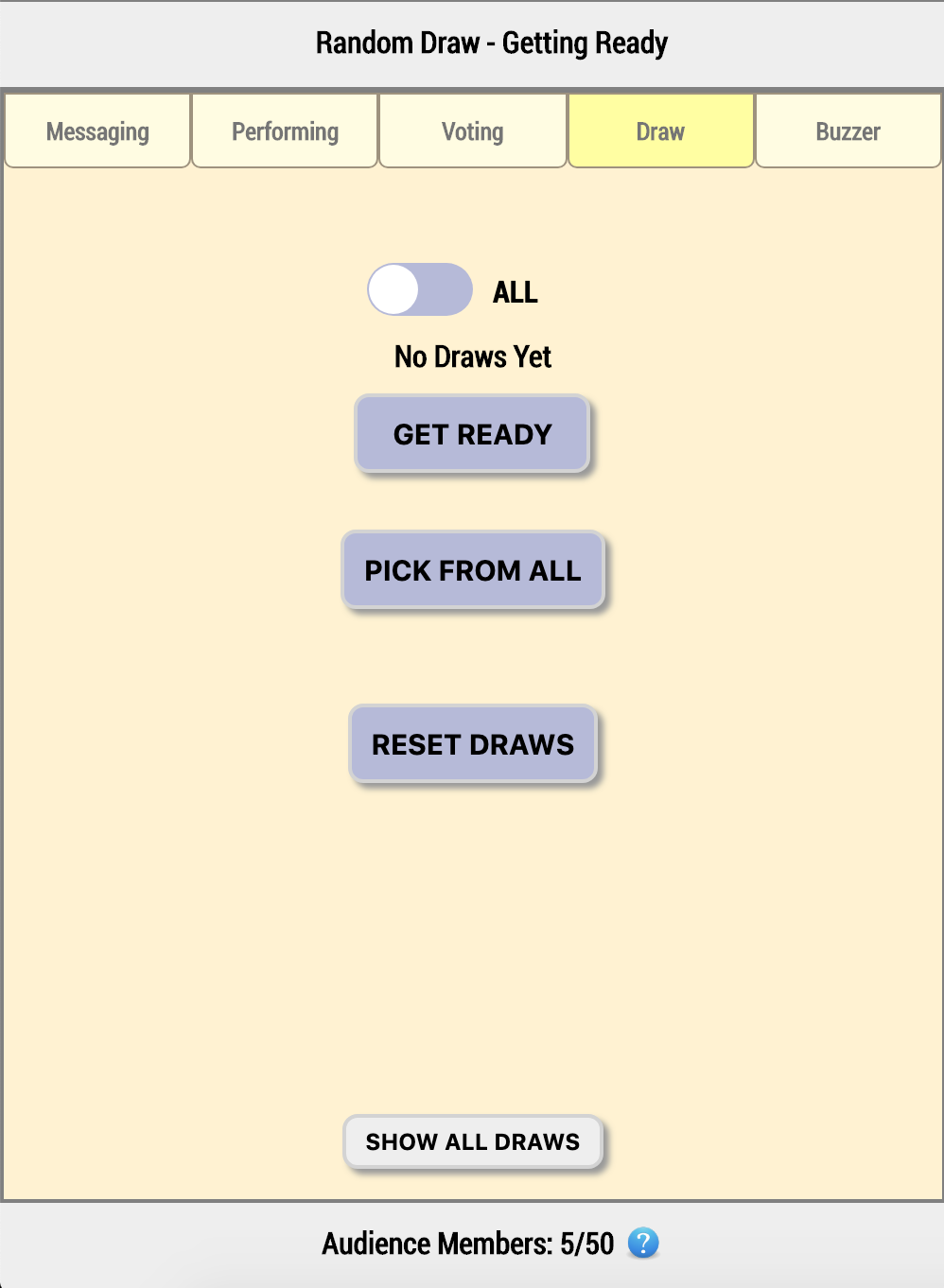
To begin a draw select "Get Ready" at the top of the page. All of the TV's will display a message indicating that the draw is about to being, and all of the mobile devices will display a graphic indicating that a draw is about to take place.
When you are ready to pick one of your audience members at random, click the "Pick From All" button. One mobile device that is logged into the show should start flashing a win graphic and the device should start vibrating (iOS only) indicating that they are the winner of the draw.
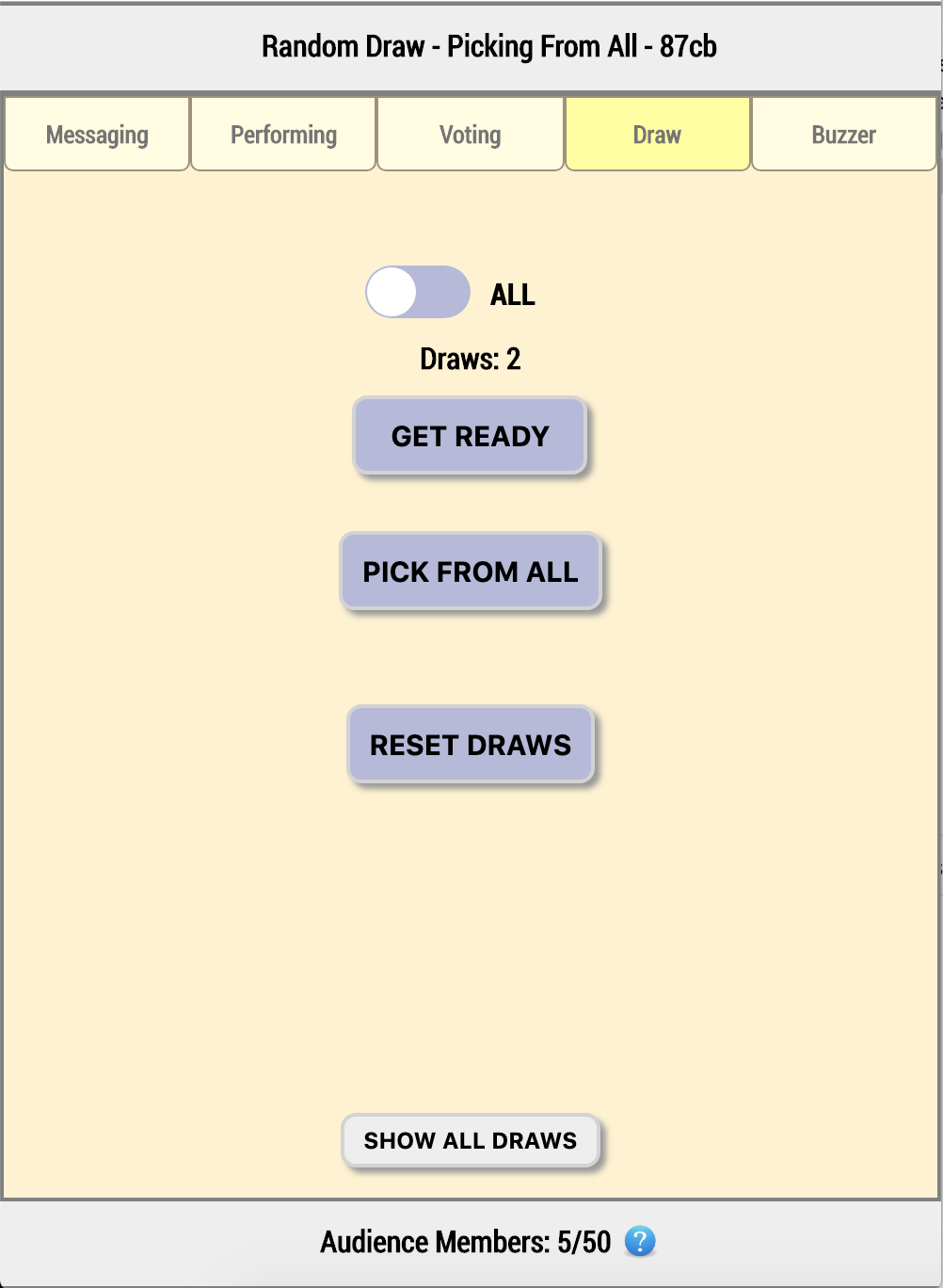
The HiD of the winner (visible on the "About" screen on their device) will appear at the top of the page if you need to confirm the ID of the winner. In the screenshot above the winner's HiD is "87cb". There will also be a small green check mark on their screen with a number indicating what draw number they won at all times for the rest of the show. This means you can confirm the as the winner of a specific draw even if they weren't in the room at the time, or if you've had to change the state of the show and move on.
If you need to reset the draws on your show, to make it as if no draws had taken place, then click "Reset Draws". A popup will appear getting you to confirm you want to reset the draws and throw away all previous draw results, and if you click "OK" then that will happen.
If you want to see all the draws that have taken place, the time they occured, and the HiD of the winner, then click the "Show All Draws" button:
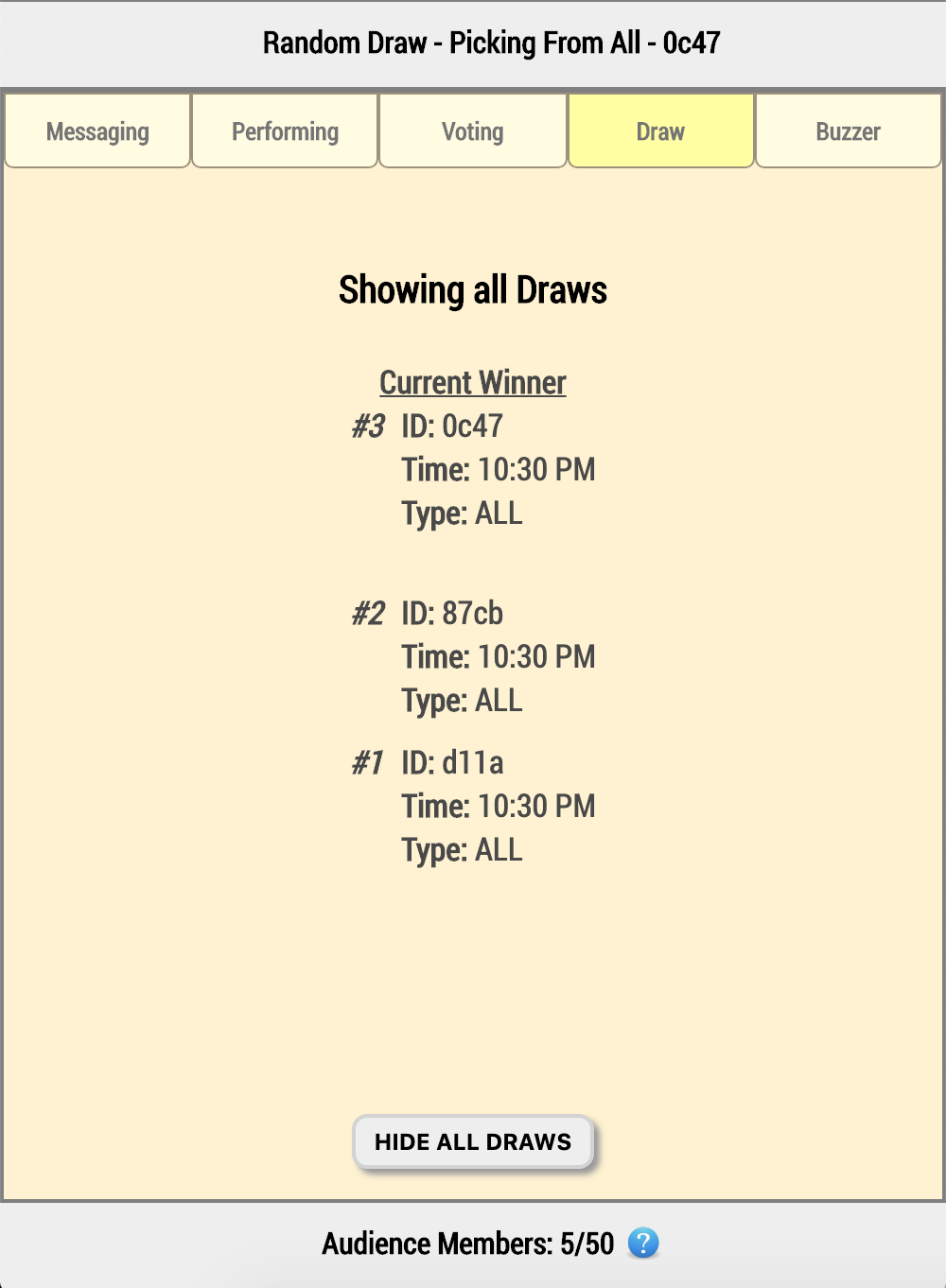
The winner of the most recent draw will be displayed as the "Current Winner" whereas all previous draws will appear below.
Draw (Opt-In)
This mode is very similar to the "Draw (All)", except audience members must click a button to opt-in for the draw before someone is picked. More detailed help for this feature is coming soon.
Buzzer
The buzzer mode allows you to turn each audience members phones into a buzzer and they can all compete to buzz in first, like you would have in a trivia show. More detailed help for this feature is coming soon.
Reset Show
Until the start time of your show has passed, or as long as less than 10 audience members have logged in, you can click the "Reset Show" button in the footer of the page. This will completely reset ALL your audience members as if no one has ever logged into your show. This will allow you to run some tests before the show starts to verify everything is working but not take up some of your purchased show capacity.