Edit Performer
After clicking the button next to a performer in your performer list you will be presented with the following popup. You'll notice it is very similar to the Add Performer interface with a couple small differences:
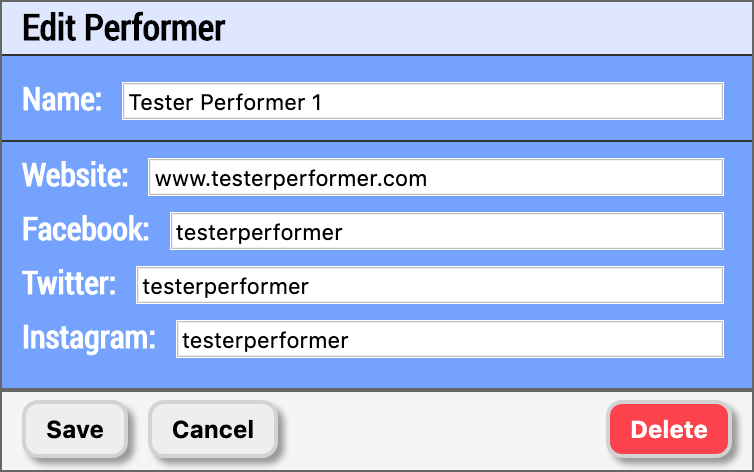
Each of these parameters control how your performer is presented to your audience. Here is a breakdown of each field and what they do:
- Name - This is the name of the performer (no way!). When they are selected to perform, or when a vote is being taken on them, or when they are declared the winner, this is what will appear on the TV screens and mobile devices to represent them.
- Website - The performer's website. You can enter just the domain (e.g., 'example.com') or the full URL. The system will automatically add the protocol if needed. When the mobile devices choose to display the Show Lineup, they will see a button that will link to this website alongside the performer's name.
- Facebook - The performer's Facebook page. You can enter just the page name (e.g., 'yourpage') or the full URL. Examples: 'yourpage' or 'https://www.facebook.com/yourpage'. When the mobile devices choose to display the Show Lineup, they will see a button that will link to this Facebook page alongside the performer's name.
- Twitter/X - The performer's Twitter/X handle. You can enter just the handle with or without @ (e.g., '@yourhandle' or 'yourhandle') or the full URL. Examples: '@yourhandle', 'yourhandle', or 'https://x.com/yourhandle'. When the mobile devices choose to display the Show Lineup, they will see a button that will link to this Twitter/X page alongside the performer's name.
- Instagram - The performer's Instagram handle. You can enter just the handle with or without @ (e.g., '@yourhandle' or 'yourhandle') or the full URL. Examples: '@yourhandle', 'yourhandle', or 'https://www.instagram.com/yourhandle'. When the mobile devices choose to display the Show Lineup, they will see a button that will link to this Instagram profile alongside the performer's name.
- TikTok - The performer's TikTok profile. You can enter just the handle with or without @ (e.g., '@yourhandle' or 'yourhandle') or the full URL. Examples: '@yourhandle', 'yourhandle', or 'https://www.tiktok.com/@yourhandle'. When the mobile devices choose to display the Show Lineup, they will see a button that will link to this TikTok profile. The mobile app will attempt to open the profile in the TikTok app if installed, otherwise it will fall back to opening the profile in the device's default web browser.
- YouTube Video Link - A YouTube video you want your fans to see. You can enter just the video ID (e.g., 'dQw4w9WgXcQ'), a shortened URL (e.g., 'youtu.be/dQw4w9WgXcQ'), or the full URL (e.g., 'https://www.youtube.com/watch?v=dQw4w9WgXcQ'). The system will automatically convert it to the full URL format for storage.
Delete Performer
If you want to delete your performer, simply click the Delete button in the bottom right of the popup, as shown in the following screenshot:

You will be presented with a confirmation popup asking if you are sure you want to delete the performer. Click 'OK' and the performer will be deleted and you should no longer see it anywhere in the Human Input system for you or anyone else. You can only delete performers that you yourself created.
NOTE: THIS ACTION IS PERMANENT AND WILL AFFECT ALL USERS OF HUMAN INPUT. IF YOU DELETE A PERFORMER THERE IS NO WAY TO GET THEM BACK!